The iMassage service is used by millions around the world now because it has become available on all Apple devices, whether iPhone, iPad or iPod touch, and in iOS 8 Apple will provide many important updates with it - see this link-. In this article, you will learn how to solve most of the problems you may encounter with it.
1: Make sure the internet is working
IMessage is sending via the Internet, so if you find that your messages are stuck, before you take any step, first make sure that your Internet connection is working properly and there are no problems by opening any application or browser that uses the Internet such as Twitter, Facebook, Safari, Chrome.
2: Restart your device
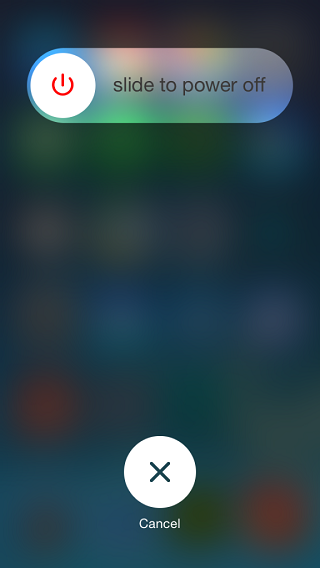
Restarting your device can solve many problems, if the iMassage service is not working then restart the device and when you finish this process try again to send a message via iMessage. If the problem is still there, go to Step 3.
3: Check the date and time
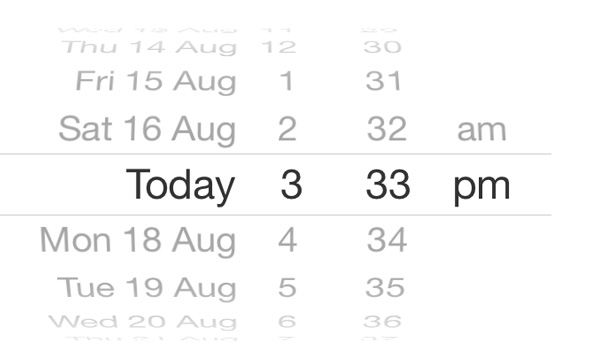
If you do not set the date and time correctly, then this is a big problem because the iMassir service will not work properly and will show many strange problems such as not sending messages or you will not be able to activate the service from the ground up. So you have to make sure that the timing on your device is correct by going to Settings. It is recommended to turn on automatic time adjustment.
4: Check out the Apple website
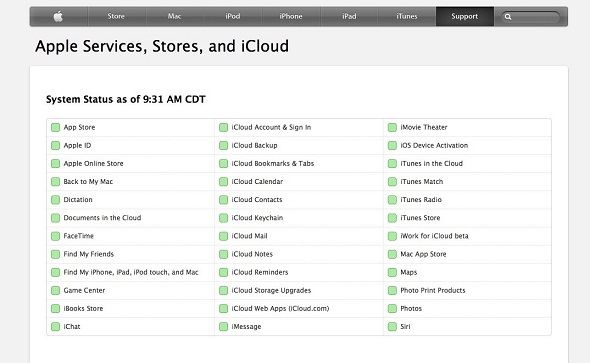
From time to time, Apple may perform periodic maintenance and when it does, some services will be temporarily suspended. In order to make sure that the iMassage service is not working because of a problem with it and not because Apple is performing maintenance, visit the Apple Services Status website this link Then look for iMessage, and if you find a green sign next to it, then the service is working properly and the problem is with your device. But if it is in another color - red - then this means that the defect may be from Apple and you have to wait until you finish all the repairs.
5: Close iMessage, then activate it again
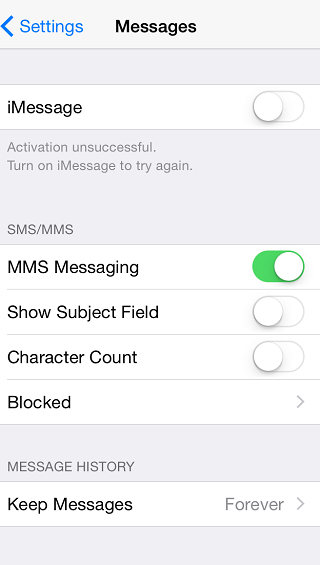
It is possible for the message to fail to reach Apple's servers or to a sync error between devices and this causes disruption to sending messages to your friends. If the service is still stopped despite the previous steps, close the iMessage and then open it again. To do this, go to Settings> Messages> you will find iMessage, close it, wait a minute, and reopen it again.
6: Reset the network settings
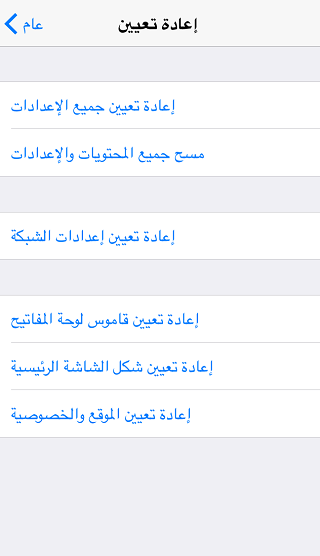
If all the previous steps didn't resolve the issue, this step might do the trick, resetting your network settings. This fixes most issues. To do this, go to Settings > General > Reset > then tap Reset Network Settings.


80 comment