Sometimes you want to mail a picture to illustrate something and you only want to illustrate a specific point. The picture. So, Apple added a hidden feature in the iOS 9 system, known as Markup, or in Arabic, “Tashif”, which enables you to draw on images in the mail before sending them.

This drawing feature differs from any other application in an important point, which is that this drawing is only on the sent image, that is, the primary image remains in the photo album of your device without difference. To try this command, do the following:
1
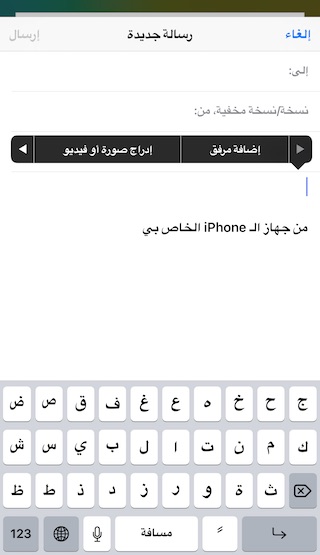
Open the Photos app and create a new mail message, then tap and hold until the option to insert a picture appears.
2
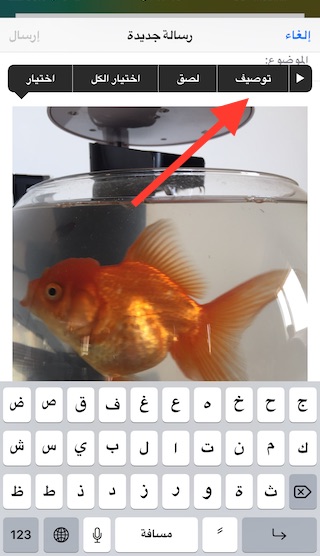
Choose the image you want to send, then long tap again until Markup or Markup option appears if you use your device in Arabic
3
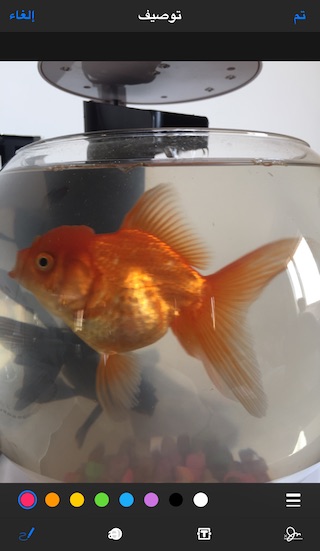
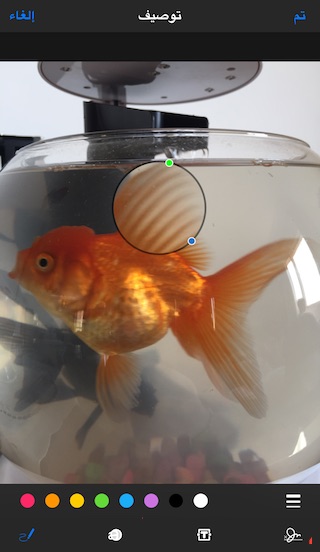
A new screen will appear in which your image is located, as well as a number of 4 options at the bottom, and colors are as follows:
4
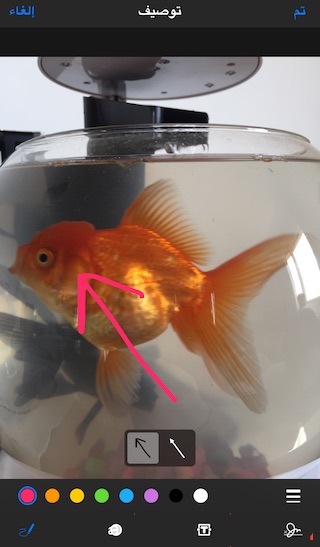
The first option enables you to freely draw in the color of your choice on the image, and the smart recognition feature is available, for example if you draw a star, circle, or arrow in your handwriting, it will not be perfect, then the system will show you an option: Do you want to draw an arrow or keep what you have drawn as follows:
5
The second option is a magnifying glass that you can add anywhere in the image.
6
The third option from the bottom enables you to add text to the image, in either Arabic or English, and you can control its color and size.
7
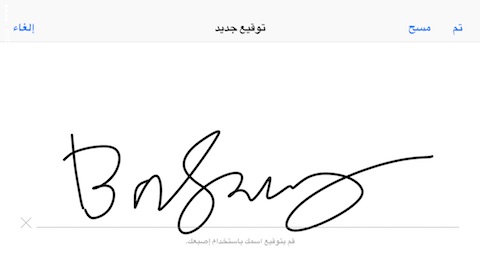
The fourth option "the first from the right at the bottom" is the signature and when you press it, a screen will appear in which you can sign with your finger or any Styles pen you have to add to the image.
Once you are done editing the photo, click on "Done" and it will be attached to the email. Don't worry, the original image stays the same in the photo album and doesn't change.




83 comment