You may be surprised and say: What does the neighbors' Wi-Fi come on to my Wi-Fi and why might it cause my internet service to slow down? In order to answer you, you must know that the Wi-Fi moves in channels, and if the Wi-Fi channel of the neighbors or one of those close to you conflicts with your Wi-Fi channel, here interference occurs and this interference causes slow. So let us tell you an easy way, and only with the iPhone, it will enable you to discover and solve the problem of slow Wi-Fi.
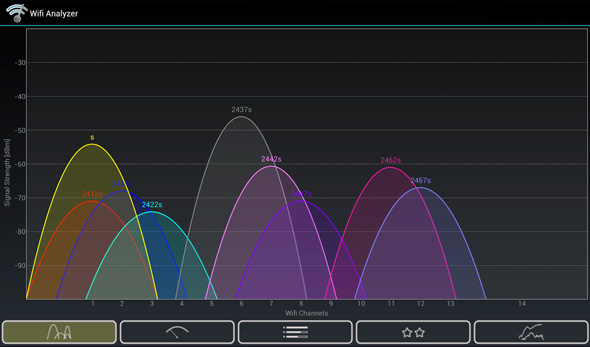
Discover the problem
Wi-Fi problems are many and ways to adjust Wi-Fi to be better are many, but here we will only talk about interference and therefore you must first discover if there is interference or not, and this will be done by downloading an application from Apple called AirPort Utility


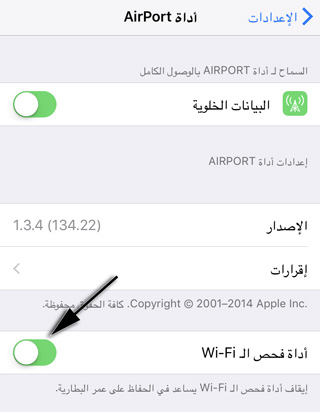
After downloading and installing the application, go to the settings of the iPhone device and search for the AirPort tool, then enter the tool’s settings, and activate the option (WiFi scanner)
Now open the app and tap the (WiFi Check) button on the top on the right
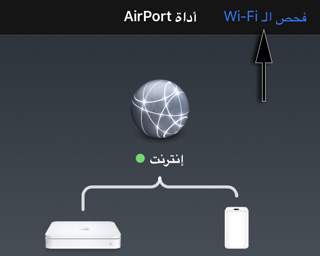
Then click on the Scan button and the WiFi scanner will start to detect all the neighboring networks and you can leave them for some time or roam around the house until you discover one of the neighbors' networks that carries the same channel as your network.
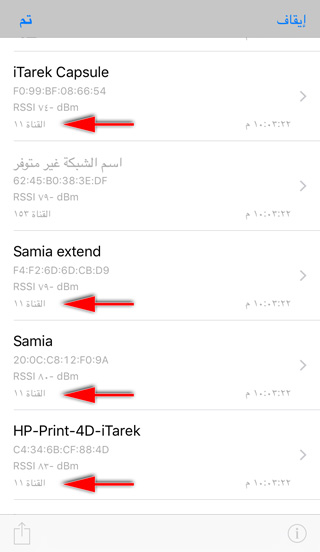
If you really discovered that there are networks carrying the same channel, then you will have a problem, and here we come to how to solve this.
In the pictures, I discovered that the neighbor named (Samia) has the same Wi-Fi channel as my (iTarek-Capsule)
Solve the problem of overlap
Now that you have discovered that there is a problem, you should most likely change your Wi-Fi channel. “I don’t think it is appropriate to knock on the neighbors’ door and tell them, ‘Sorry, your Wi-Fi channel is interfering with mine, and it is my channel, so please change your channel.’” 🙂 It is easier to change your Wi-Fi channel.
To change the Wi-Fi channel, you must enter the settings of your router, usually through the browser, and type the IP number of the router, which may be 192.168.1.1 in most cases.
Then you enter the WiFi settings and from there change the value of the Channels, which will most likely be Auto
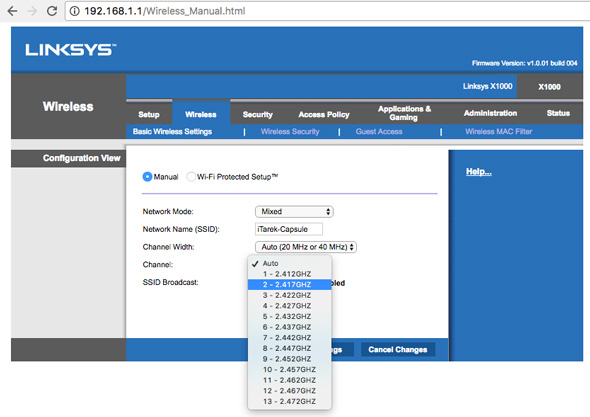
Now you can use the (WiFi scanner) again and find out if there is any interference and that the problem has been solved.


88 comment