New complaints haunt Apple from iPhone users! After Apple launched IOS 17.2.1 update In order to address some errors, the most important of which is the problem of battery drain in some versions of the iPhone. Now, Apple is facing new complaints that the latest update is causing disruption to the iPhone's cellular communications. In this article, you will find information about these complaints and what Apple thinks about them.
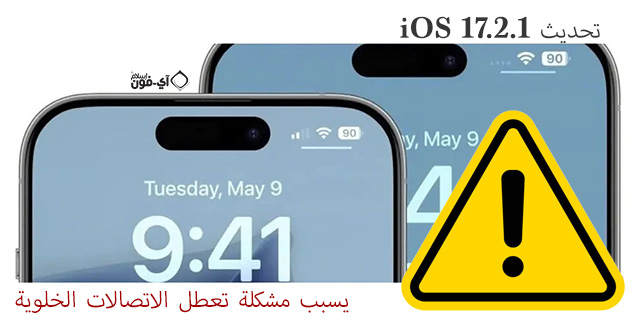
The problem of cellular communications disruption on the iPhone?
Many reports indicate that many users have submitted complaints through Apple's technical support regarding the difficulty of making cellular connections on the iPhone. This problem appeared directly after they released the new iOS 17.2.1 update from Apple.
Not only that, users are finding it difficult to connect to the Internet. These things are absolutely indispensable. In the same context, Apple has not yet announced this problem or its causes.
User opinions about the problem of cellular communications disruption
After this crash appeared and no reason or solution was revealed, a group of solutions began to spread to millions of users facing this problem. The first is to reset the network settings, do a factory reset, but this solution may lead to the loss of your files on the iPhone.
On the other hand, some users suggested some solutions, such as disabling VPN connections, or turning on airplane mode for a short period, and then disabling it again. But some users decided to update to iOS 17.3 beta. Although this update was not issued by Apple in an official or final form, you can access this update through Apple Beta Program Or Apple's beta program. You will need a subscription to do this.

Here are some tips to solve the problem of connection failure on the iPhone
These tips will solve the problem if the cause of the crash is your iPhone. But if the cause of the disruption of cellular communications in your device is the iOS 17.2.1 update, Apple will have the solution by providing a new update that addresses this error.
- Activate Airplane mode for 30 seconds, then disable it again.
- Make sure your device has cellular coverage and that these signals are not fake.
- Restart your iPhone. This may be a temporary system issue.
- Reset your network, including Wi-Fi, paired devices and cellular settings.
- Finally, take the SIM card out of its place and then put it back in its place. You can also be sure that it does not need to be changed through your telecommunications company.
Source:


35 comment