With the release of an update iOS 18.2Apple has integrated ChatGPT with Apple Intelligence to enhance the AI capabilities of the iPhone in multiple ways. When enabled, Siri can leverage ChatGPT to answer complex queries about images and documents. The integration also includes writing tools for creating text and images, as well as a visual intelligence feature that helps identify objects and places using the iPhone camera.
You don’t need a ChatGPT account to start using these features, but linking a free or paid ChatGPT account gives you additional features and frequent access to advanced capabilities. In this article, we’ll show you how to set up these new features and get the most out of them. Please note that You must have an iPhone 15 Pro or iPhone 16 model. To use Apple Intelligence features in iOS 18.2 update.
Setting up ChatGPT on iOS 18.2
If you have Apple Intelligence enabled on your device, setting up ChatGPT integration takes a few simple steps, and you can get started even without having to create a ChatGPT account. You can always start with the basic setup and then move on to linking an account later if needed, and you probably won’t need to.
The feature only works if your device language is English, and the region in the region settings is set to America.
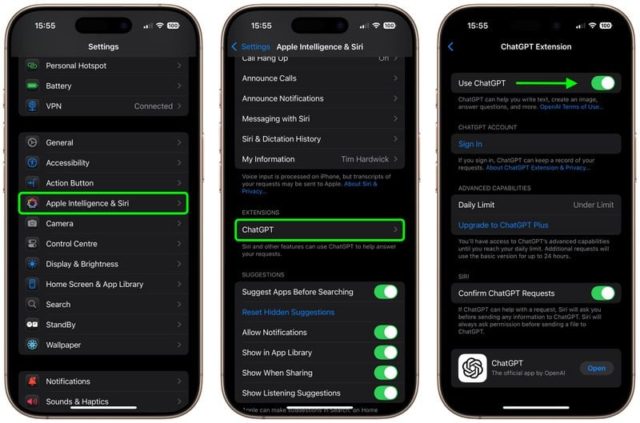
◉ Open Settings, then tap Apple Intelligence & Siri.
◉ Under the Extensions section, click ChatGPT.
◉ Enable the “Use ChatGPT” option.
If you have a ChatGPT account
You can optionally log in with your account details, whether free or paid. One of the benefits you will get is the ability to keep a history of your conversations and access them later via the ChatGPT app or its website.
Use ChatGPT without an account
You don’t need an account to use ChatGPT with Siri—the service is completely free. But you may hit OpenAI’s daily limits for advanced capabilities using the newer GPT-4o model. When those limits are reached, the system switches to basic mode for 24 hours. Although Apple hasn’t confirmed it, basic mode is believed to use the GPT-4o Mini model, which responds more quickly to regular requests, but with potentially less detailed answers. However, tests have shown that the difference between the two modes isn’t significant in the context of everyday iPhone use.
Customize settings
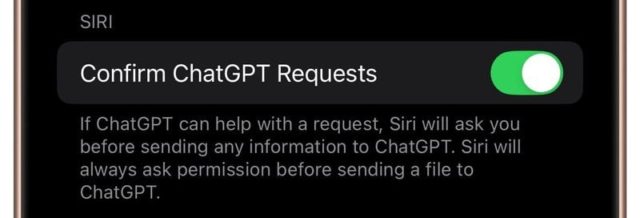
After enabling the ChatGPT add-on, Siri will automatically determine when it’s time to use ChatGPT to improve answers to your queries. You can control whether Siri asks for your permission before sending any information to ChatGPT by enabling “Confirm ChatGPT Requests” in the ChatGPT add-on settings. Here, Siri will always ask for your permission before sending any file to ChatGPT in the future.
Apple, ChatGPT, and Your Privacy

Apple confirms that when you use the ChatGPT add-on without signing in, your request and any attachments such as documents or images are only sent to ChatGPT to process your query. OpenAI does not receive any information associated with your Apple account, and your IP address remains hidden. Only your general location is shared.
OpenAI also does not store your queries or responses, and your data will not be used to improve or train their models.
If you choose to sign in with your ChatGPT account, your ChatGPT account settings and OpenAI's data privacy policies will apply.
Siri integration with ChatGPT in iOS 18.2
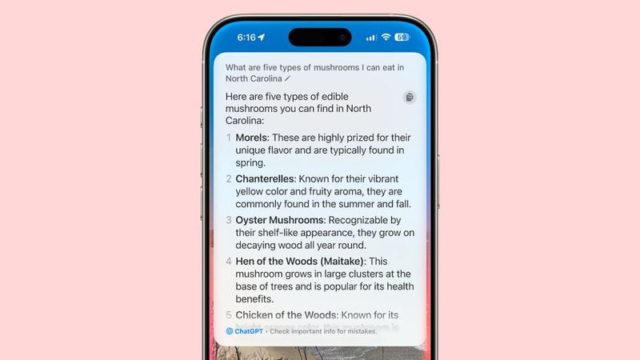
Siri’s integration with ChatGPT significantly enhances its capabilities compared to what we’re used to. The integration works well for queries that require problem solving, writing help, detailed explanations, or guided steps. You’ll notice that the responses are more detailed and contextually aware than Siri’s traditional capabilities.
How to benefit from integration
◉ Request Analysis: Siri analyzes each request to determine whether it requires ChatGPT intervention, and you can simply request ChatGPT by starting your query with the phrase “ChatGPT.”
◉ Image generation: You can ask it to create an image based on a specific description, and the system will use Dall-E to complete the process. The results are often better than Apple's Image Playground feature, and you can save the image using the save button in the top corner of the scorecard.
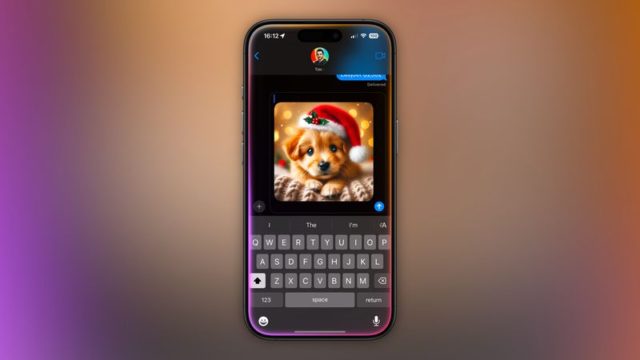
Pro tip
When you use ChatGPT through the messaging app and ask it to create an image, ChatGPT will place the image directly into the text field, ready to share in the conversation.
◉ Inquiries about on-screen content: You can ask ChatGPT to answer a question about something on your screen. Siri will offer to send a screenshot or the entire content as a file if it's a long document.
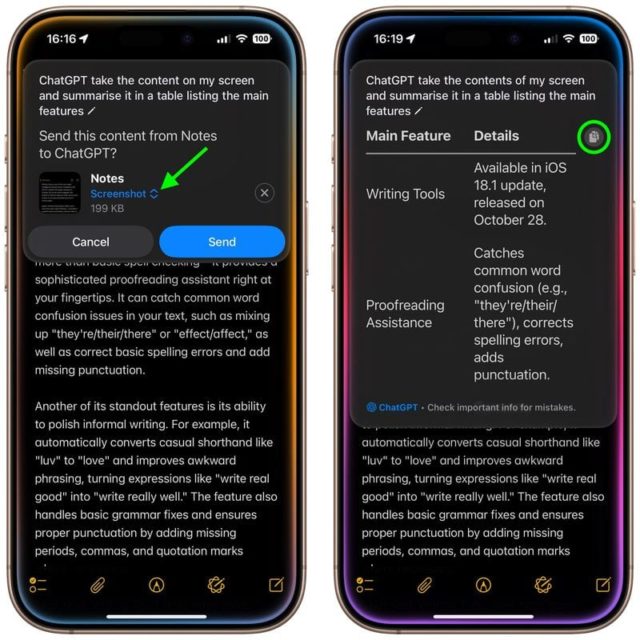
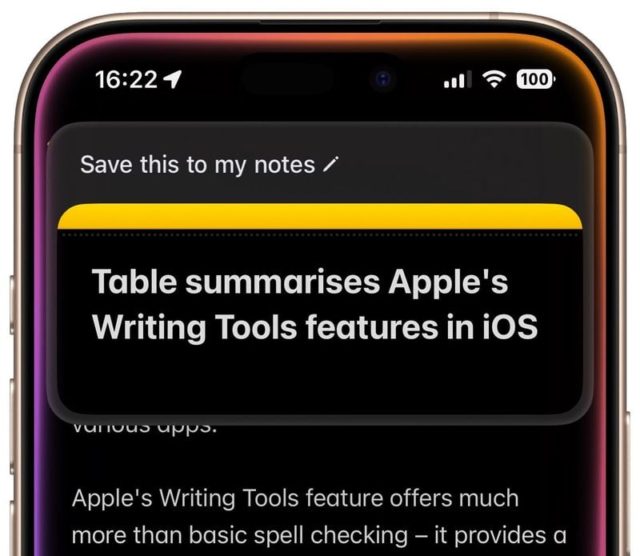
◉ Copy or save responses: Use the “Copy” button in the top corner of the scrollable reply window to copy the response to your clipboard. Alternatively, you can save helpful responses by saying, “Save this to my notes” to Siri, which provides a searchable archive of your conversations in the Notes app.
Additional integrations
◉ Writing tools: ChatGPT can generate texts using the Writing Tools feature.
◉ Visual intelligence: ChatGPT can answer questions about what the camera sees using Visual Intelligence.
We will discuss how to use these features in detail in the following sections.
ChatGPT and Writing Tools
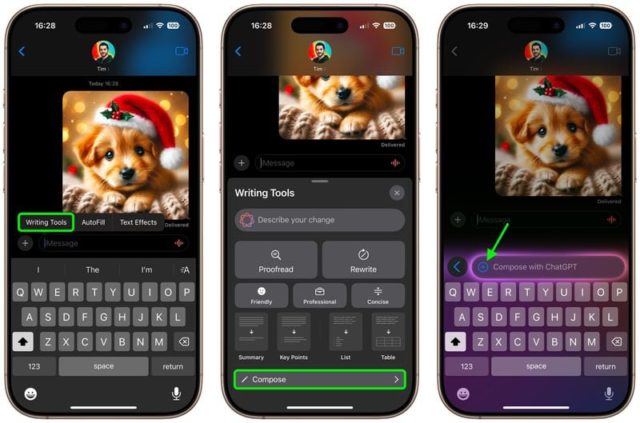
With the integration of ChatGPT in iOS 18.2, Writing Tools gets a new compose option called “Compose.” This option lets you describe what you want to write, and ChatGPT will generate the text for you.
Use Compose
◉ Enter texts and images
When you type your description into the text input field, you’ll notice a “+” button next to the field. When you click on it, you’ll be presented with options to upload a file or image from your iPhone so ChatGPT can use it as a reference in your query.
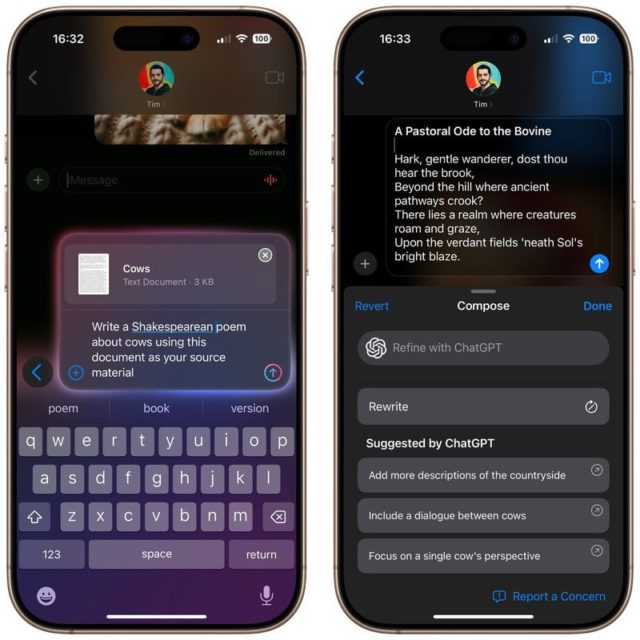
Additional suggestions
After the response is created, suggestions for additional questions you can ask will appear, and will be available in the Compose panel itself.
◉ Working with text in Notes
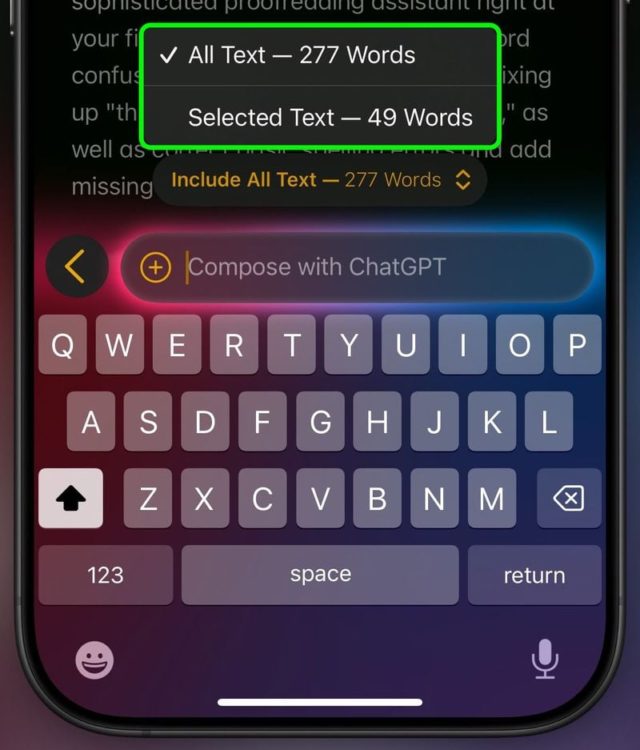
If you’re working on something in the Notes app, you can select text you want ChatGPT to improve or edit, or ask to use the entire contents of the note as a reference. These options appear as a clickable menu above the Compose input field.
◉ Anywhere
Compose isn’t limited to files or photos stored on your device. You can use it in any app that supports writing tools, like Saffari, Messages, and even third-party apps that support Apple’s suite of intelligence features.
Thanks to the integration of ChatGPT, writing tools have become more comprehensive and flexible, as you can easily create specialized texts or modify existing content, whether in default applications or supporting applications.
ChatGPT and Visual Intelligence
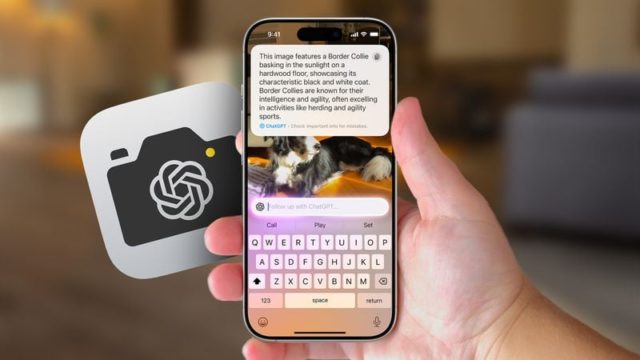
Visual Intelligence is available on iPhone 16 models and works through the Camera Control button located in the bottom corner of the iPhone. When you long press on it, Visual Intelligence mode is activated, allowing the Camera app to recognize your surroundings.
How to use the visual intelligence feature
Recognize objects
◉ Point the camera at any object or take a picture of it.
◉ Click on the “Ask” button inside the application.
◉ ChatGPT will analyze what the camera lens sees to identify the object or element shown in the image.
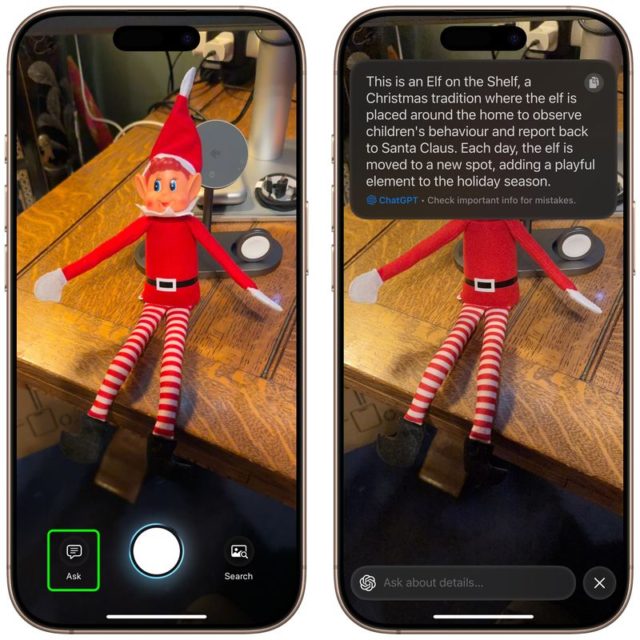
If the answer does not fully satisfy your query, you can continue the conversation by entering your questions in the ChatGPT input field within the app.
Practical uses
◉ Inside the house: Identify objects or devices around you for information or instructions.
◉ Outside the home: Learn more about items you encounter, such as plants, landmarks, or strange objects that need explanation.
Visual Intelligence makes it easy to turn your camera into an AI-powered exploration tool, opening up new ways to learn about the world around you.
The Future of Chatbot Add-ons in iOS

There are reports of future plans for additional integrations of Apple’s AI technologies with AI chatbots like Gemini and Claude. While there are no official reports yet, Apple software chief Craig Federighi said in June that he would like to see integration with Gemini in the future.
According to a report from Bloomberg, Apple may delay the integration of Gemini until next year, to provide an exclusive window for OpenAI's technology, especially since Apple is not currently paying for it.
It is unclear whether the Gemini launch will be included with the iOS 18 updates or appear as part of the iOS 19 updates later.
The integration of these systems could provide a broader and more comprehensive experience for users, while adding competitive capabilities in the world of artificial intelligence. However, the timing of the release and details of the potential features remain under wraps until they are officially announced.
Source:


18 comment